


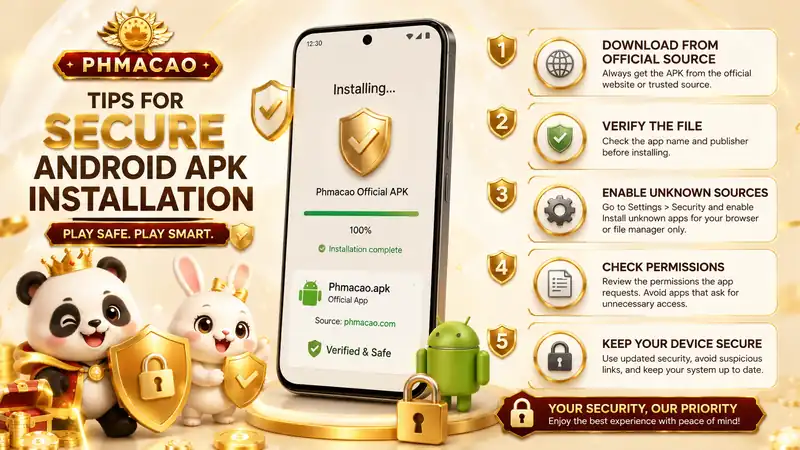
Many Android users want more flexibility than the official app store provides or Phmacao App page. You might seek specific tools or a customized experience. However, installing files from external sources can feel risky. Learning a secured Android APK installation method ensures your device stays safe. Phmacao Mobi wants you to enjoy a smooth digital journey. We focus on safety and stability for every user. Let us explore how to handle these files correctly.
Understanding the Basics of APK Files
Before diving into the steps, we must understand what an APK is. APK stands for Android Package Kit. It is the file format used by the Android operating system for installation. When you use a standard store, the process happens in the background. You do not see the file. When you download manually, you handle the package yourself.
Not all packages are created equal. Some come from official developers. Others are modified by third parties. This is why a careful approach is necessary. A secure Android APK installation method starts with knowing your source. You should only trust well-known platforms. Avoid sites that look cluttered or lack clear contact information.
Why Sourcing Matters
Your device stores sensitive data. This includes passwords, photos, and personal messages. A malicious file can act as a gateway for intruders. If you download from a verified source, the risk drops significantly. Always check user reviews and community forums before clicking download. If a file seems too good to be true, it usually is.
Checking File Integrity
One advanced way to verify a file is by checking its hash. A hash is like a digital fingerprint. Developers often provide an MD5 or SHA-256 hash on their official pages. You can use a hash checker app to compare the downloaded file with the official fingerprint. If they match, the file has not been altered. This adds an extra layer of protection to your workflow.
Step-by-Step Guide to Safe Installation
Now, let us walk through the actual process. Following these steps helps maintain your device health. Phmacao Mobi recommends staying organized throughout this procedure.
Enabling Unknown Sources
By default, Android blocks installations from outside the official store. This is a safety feature. To proceed, you must change this setting. Go to your Settings menu. Navigate to Security or Privacy.
Look for the option labeled Install Unknown Apps. In newer Android versions, this permission is granted per app. For example, you give your web browser permission to install the file. Once you toggle this on, you can run the APK. Remember to turn this setting off after you finish the installation. This prevents accidental installs in the future.
Executing the Installation
Locate the downloaded file in your Downloads folder. Tap the file to begin. Your phone will ask if you want to install the application. Read the prompts carefully. If the system warns you about a high risk, stop immediately. If the source is trusted, tap Install. Wait for the process to complete. Once finished, you can open the app and start exploring.
Managing App Permissions
After installation, the app will request certain permissions. Be mindful of what you allow. For instance, a simple utility app does not need access to your contacts or microphone. If an app asks for excessive permissions, it might be overreaching. Review these in Settings > Apps > Permissions. Only grant what is strictly necessary for the app to function.

Advanced Security Tips for Android Users
Installation is only the first step. Maintaining a clean system requires ongoing effort. Here are a few professional tips to keep your Android environment healthy.
Use a Mobile Security Scanner
Even a secured Android APK installation method can benefit from a second opinion. Use a reputable mobile antivirus scanner. These tools scan files for known threats before you open them. Some scanners integrate directly with your browser. They alert you if a download link leads to a dangerous site. This proactive approach prevents problems before they start.
Keep Your OS Updated
Software updates are not just for new features. They include critical security patches. Google frequently releases updates to close vulnerabilities. If your system is outdated, it is easier for malicious code to run. Check for system updates weekly. Ensure your security patch level is current. A modern OS provides better sandboxing for apps.
The Role of Play Protect
Google Play Protect works in the background. It scans your apps even if they did not come from the store. It looks for harmful behavior. If it detects a problem, it will notify you. Do not ignore these warnings. If Play Protect flags an app, uninstall it immediately. This automated system is a great safety net for all users.
Avoiding Modified Versions
You will often see “Modded” versions of popular apps. These claim to unlock premium features for free. Be very cautious with these. Modders often inject hidden code into the original package. This code can steal data or slow down your phone. Sticking to the original developer versions is the safest path. Phmacao Casino encourages using official versions to ensure stability.
Troubleshooting Common Installation Issues
Sometimes, you might encounter errors during the process. Understanding these helps you fix them without compromising security.
App Not Installed Error
This is a common message. It usually happens for three reasons. First, you might have a version conflict. If an older version of the app exists, uninstall it first. Second, the APK might be incompatible with your Android version. Check the minimum requirements of the app. Third, you may have run out of storage space. Clear some cache or delete old files to make room.
Package Parser Error
This error means the system cannot read the file. This often happens if the download was interrupted. The file is corrupted. The solution is simple: delete the file and download it again. Ensure you have a stable internet connection during the process. If the error persists, the APK might be built for a different processor architecture (like ARM vs x86).
Permission Denied Errors
If the app crashes immediately after launch, check the permissions. Some apps require specific access to run. Go to the app settings and manually enable the required permission. If the app still crashes, it might be unstable. In such cases, it is better to uninstall it and look for an alternative.
Final Thoughts on Device Safety
Taking control of your Android experience is exciting. However, safety should always come first. By following a secured Android APK installation method, you minimize risks. Always verify your sources and keep your software updated. Phmacao Casino believes that an informed user is a safe user. Be mindful of permissions and use scanning tools. With these habits, you can explore the vast world of Android apps with confidence and peace of mind.